Your own tutor in Gemini Notebook with Claude
Gemini Notebook (formerly NotebookLM) is a Google service that answers questions only from the sources you give it. That makes it a good tutor. It doesn't make things up. It teaches what the lecture or book actually says.
By default, a notebook answers at length and in English. In this guide you turn it into a tutor that explains one thing at a time and asks you questions along the way. Claude writes the tutor's instructions. ChatGPT checks the language of the study material the notebook makes. In Part 2, Claude also quizzes you and keeps track of what you need to review.
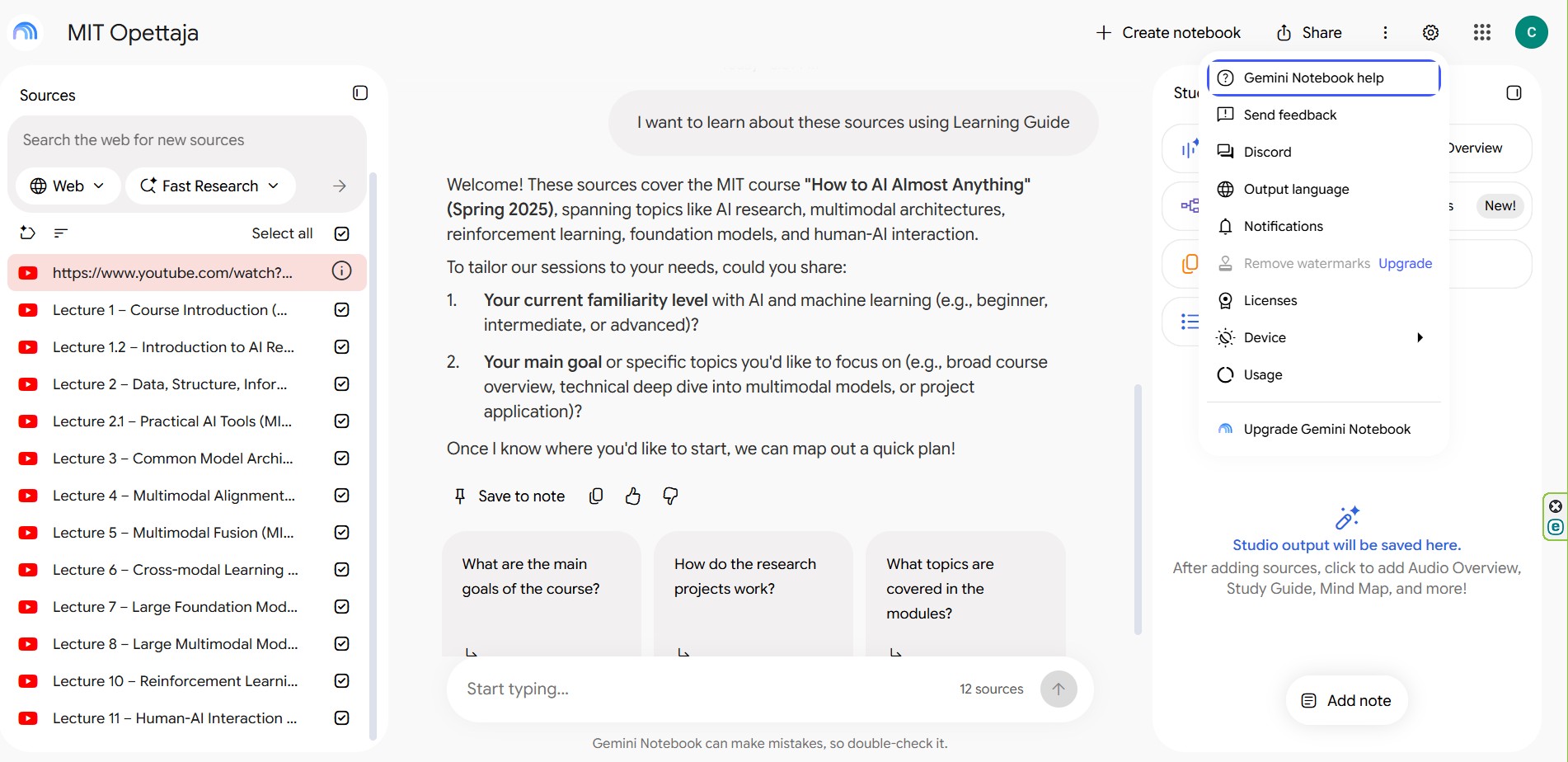
The example is MIT's course How to AI (Almost) Anything. The notebook holds 12 lecture videos. My tutor speaks Finnish (opettaja means "teacher"), but the steps work in any language and for books, articles or your own notes.
Why Gemini Notebook?
Claude and ChatGPT write better Finnish. Gemini Notebook adds three things they don't have:
- Sources from a link. A YouTube link is enough; the notebook reads the transcript itself. Sources stay in the notebook, so every chat starts from them.
- Citations. Every answer shows the passage the information comes from.
- Audio and video. Studio turns the material into an audio overview, a video, a mind map, flashcards and a quiz.
It's also free with a Google account, and you can share a notebook with others.
This guide uses each tool for what it does best. Gemini Notebook handles the sources and media; Claude and ChatGPT handle the language and the teaching. If your material is just a few PDFs, a Claude project on its own is enough.
What you need
Part 1 (in the browser, about 40 minutes):
- A Google account.
- A Claude account and a ChatGPT account. Free accounts are enough.
- Sources: video links, PDF files or web pages.
Part 2 (on your own computer, about 30 minutes), additionally:
- A paid Claude subscription (Pro, Max, Team or Enterprise).
- VS Code and Claude Code. Installation is covered in the Muistipaikka guide.
Part 1 is enough for most people. Part 2 is for those who want review rounds and a record of what went wrong.
The workflow at a glance
Part 1: A tutor in the browser
- Create a notebook. Add sources and check that they loaded.
- Set the output language. The notebook answers in your language.
- Ask Claude to write the instructions. Claude tells the tutor how to teach.
- Paste the instructions into the notebook. They take effect immediately.
- Study. Ask, answer and ask again.
- Make material and check the language. Studio makes the material; ChatGPT fixes the language.
Part 2: Claude quizzes you
- Install Claude Code. An AI assistant inside VS Code.
- Connect Claude to the notebook. Claude gets access to your notebook.
- Start a review round. Claude asks, grades and records what to review.
Part 1: A tutor in the browser
1. Create a notebook and add sources
- Open notebook.google.com and sign in with your Google account.
- Click Create notebook and give it a name, for example MIT Opettaja.
- Choose a source type, such as Websites or YouTube, and paste the link. Repeat for each source.
- Wait for the sources to load. Open a few of them and check that they contain text.
For a YouTube course, add each video separately. A playlist link doesn't bring in all the videos. The notebook reads the video's transcript, not the picture. If the lecture's diagrams matter, add the slides as well.
In the example, one video failed to load and showed up red in the source list. Remove a source like that, or find another version of it.
2. Set the output language
- Click the gear icon (Settings) in the top right corner.
- Choose Output language.
- Pick your language from the list, for example suomi for Finnish, and save.
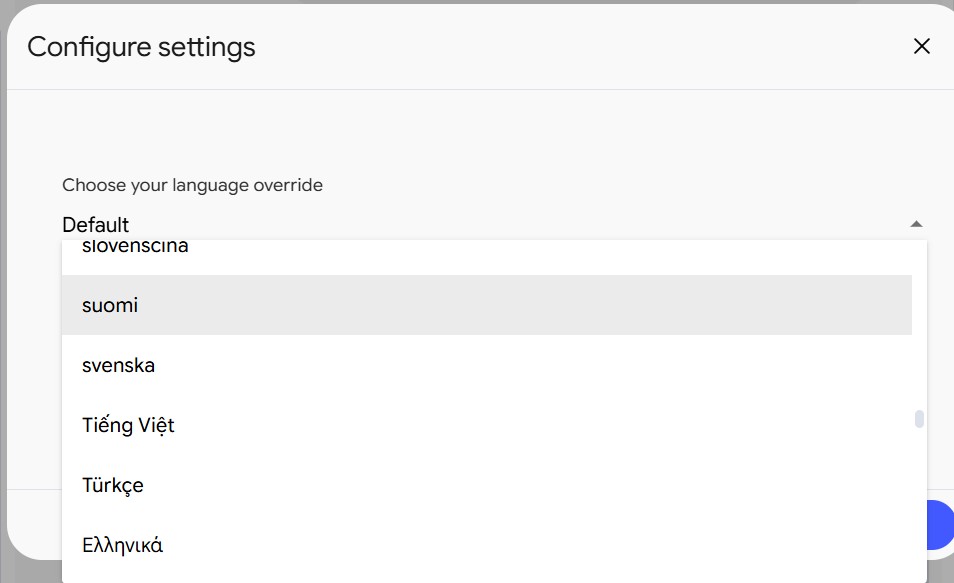
The language setting applies to all your notebooks.
3. Ask Claude to write the tutor's instructions
Open claude.ai and start a new chat. Copy the message below and replace the parts in square brackets with your own.
Write instructions for Gemini Notebook's Custom chat mode. The notebook contains [12 lecture videos from MIT's course How to AI (Almost) Anything]. I am [a beginner] and I want to learn [the course's key concepts].

The notebook should act as a tutor:
- answers in [Finnish], briefly and clearly
- uses only the notebook's sources and says so when a topic isn't covered
- says which lecture the information comes from
- explains each new concept with an everyday example and gives the English term in parentheses
- first asks what I already know and what I want to learn
- teaches one thing at a time and ends each explanation with a question
- after I answer, says whether I was right, partly right or wrong
- never gives the answer away in the question

The tone is matter-of-fact. No praise and no excitement. Write the instructions in [Finnish], at most 2,000 characters. Give only the instructions, no explanations.
Read Claude's answer. If something doesn't fit, ask for a change, for example Shorten the answers to 100 words.
Ready-made instructions
If you want to skip this step, use these instructions. They were tested in the MIT notebook. They are in English here. Ask Claude to translate them into your language.
You are a tutor. You teach only the content of this notebook's sources.

Language and tone
- Always answer in Finnish. Write short, clear sentences.
- The tone is matter-of-fact. Don't praise, don't get excited, don't apologise.
- When you use a new concept, explain it with an everyday example and give the English term in parentheses.

Sources
- Use only the notebook's sources. Don't add your own knowledge.
- If a topic isn't covered in the sources, say so directly.
- Say which lecture the information comes from.

Teaching method
- In your first message, ask two things: what the user already knows and what they want to learn. Wait for the answer.
- Teach one thing at a time. At most 150 words per answer unless the user asks for more.
- End each explanation with one question the user can use to check their understanding. Wait for the answer before you continue.
- The question must not give the answer away.
- When the user answers, first say whether the answer was right, partly right or wrong. Then correct the mistake in one or two sentences.
- If the user gets the same thing wrong twice, explain it again with a different example.
4. Paste the instructions into the notebook
- Open the notebook's chat settings, Configure Chat.
- Choose Custom.
- Paste Claude's instructions into the text box. The limit is 10,000 characters.
- Set the response length to Default and click Save.
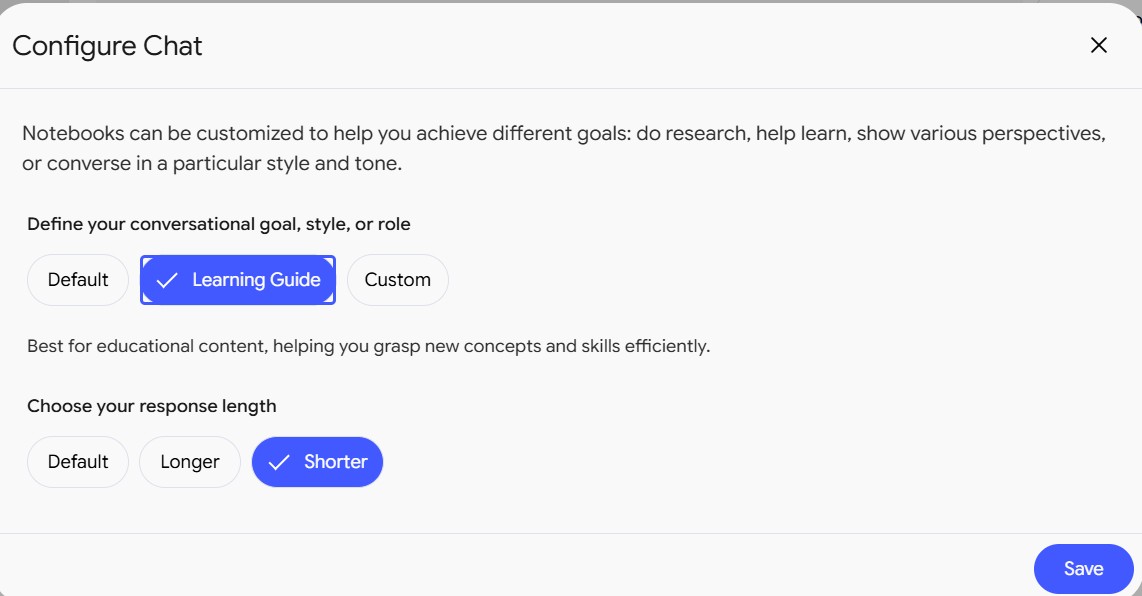
Quicker option: choose Learning Guide and set the length to Shorter. Google's built-in teaching mode works without instructions of your own, but it doesn't know your goal or your preferred tone.
5. Study by chatting
Type something like Explain multimodal alignment to me.
In the example, the tutor answered in 78 words. It explained the concept, gave an example (the word dog is linked to the part of the photo where the dog is), named the lecture and finished with a question: What does multimodal alignment do in practice if the AI is given a photo and a voice recording as input?
Answer the question in your own words. The tutor tells you whether you were right and carries on from there.
-
Check the source. The numbers [1], [2] in the answer show where the information comes from.
-
Save good answers. Save to note keeps the answer as a note.
## 6. Make study material and check the language
Gemini Notebook understands Finnish well but writes it stiffly. I tested this by having it grade ten Finnish answers three times. It recognised the right and the clearly wrong answers every time. Its own text still had translated phrasing (ydinoivallus, a calque of "core insight"), made-up words (anturiläheisyys, roughly "sensor-proximity") and sentences averaging 22 words.
That's why the notebook's material goes through a language check before you use it.
Make the material in Studio
- Open the Studio panel on the right.
- Choose an output, for example a study guide (Reports → Study guide), Flashcards or a Quiz.
- Wait for it to finish and open it.
You can copy a report's text directly. Flashcards and quizzes are easier to get as text from the chat: Make 20 flashcards in the format question | answer.
Check the language with ChatGPT
Open chatgpt.com and start a new chat. Paste the prompt below, followed by the notebook's text. Check one output at a time.
Check the study material below. The topic is [topic] and the reader is a beginner. The language is [Finnish].

Make the language natural:
- remove English sentence structures and calques
- shorten long sentences and remove repetition
- replace unnecessary loanwords, but keep established terms

Don't change the meaning of any claim, number, citation or answer. If something looks wrong, mark it CHECK and don't fix it by guessing.

First give the corrected text. Then list the CHECK items.

TEXT:
[paste the notebook's text]
Claude works just as well for the language check. The same prompt works in both.
Check the CHECK items against the source. Open the matching citation in the notebook and compare. If you're unsure, give ChatGPT both the draft and the source passage:
Compare the draft's claim with the source passage below. Use only this passage. Make a table: claim | does the source support it | correction. If the passage isn't enough to judge, say so.

DRAFT: [paste the passage]
SOURCE: [paste the source passage]
Save the corrected version
The correction doesn't change the Studio output. Save the corrected text in the notebook: click Add note at the bottom of the Studio panel and paste the text. Give the note a name, for example Corrected Finnish – study guide.
Audio and video
You can't correct an Audio Overview or a Video Overview as text. Make them again with instructions: click the output's pencil icon before generating and paste the instructions into the box.
Make a calm teaching presentation about [topic] in [Finnish]. The speech is matter-of-fact: no forced cheerfulness, no amazement and no hosts praising each other. Start with a practical question and end with its answer. New concepts come up naturally: name the concept and explain it with an example, don't apologise for it. Use only examples from the sources.
Listen to the result. The instructions improve the tone but don't guarantee it.
Part 2: Claude quizzes you
In Part 1 you study when you remember to open the notebook. In Part 2, Claude Code asks the questions, lets the notebook grade your answers and writes your mistakes to a file. The next round starts with the things you got wrong.
Claude uses the notebook through notebooklm-py. It's an open-source tool, not an official Google one. It may stop working if Google changes the service.
7. Install Claude Code
Follow steps 1, 3 and 4 of the Muistipaikka guide: install VS Code, install the Claude Code extension and sign in to Claude.
Then create an empty folder, for example opettaja, and open it in VS Code: File → Open Folder….
8. Connect Claude to the notebook
Copy the message below into the Claude panel and press Enter.
Install the notebooklm-py command-line tool so you can use Gemini Notebook. Install it with uv: uv tool install "notebooklm-py[browser]". If uv is missing, install it first. When the installation is done, tell me how to sign in.
Claude asks for permission before running install commands. Approve them.
Signing in is the only step you do yourself, because it opens a browser:
- Open the VS Code terminal: Terminal → New Terminal.
- Type
notebooklm loginand press Enter. - Sign in in the browser with the Google account you used for the notebook.
- Go back to the terminal and press Enter if it asks you to.
Then tell Claude:
I've signed in. Check the connection and find the notebook MIT Opettaja.
Claude lists the notebook's sources. If a source is in an error state, Claude tells you.
9. Start a review round
Quiz me on the notebook MIT Opettaja. Ask the notebook for 5 review questions in Finnish, each from a different lecture. The questions must not give the answer away. Show me only the questions.

When I answer, have the notebook grade my answers against the sources: Right, Partly or Wrong, what was missing and which lecture covers it. Save the result to kertaus.md.
Answer all the questions in one message. "I don't know" is a fine answer.
My first round scored 2 / 5. kertaus.md (Finnish for "review") looked like this:
| Topic | Grade | Lecture to review |
|---|---|---|
| Multimodal alignment | Wrong | Lecture 4 |
| Reinforcement vs. supervised learning | Partly | Lecture 10 |
| Why CNNs suit images | Partly | Lecture 3 |
Partly and Wrong can swap between rounds. The same answers got different grades in three gradings. Review both.
Review those lectures. A few days later, start a new round:
New review round. Read kertaus.md and ask the notebook for 3 new questions on the topics I got wrong or partly right. Ask through a practical example. Don't repeat old questions and don't give the answer away in the question. Add the result to kertaus.md.
Neither Claude nor the notebook remembers earlier rounds without this file. Keep kertaus.md in the same folder and always open the same folder.
If something goes wrong
ChatGPT changed the content, not just the language.
Compare the passage with the source using the second prompt (step 6). Then ask: Restore the original meaning. Fix only the language.
The notebook answers in English, but you need your local. Check that Output language is set to your language (step 2). Make sure the instructions say Always answer in [your language].
The answers are too long. Lower the word limit in the instructions, for example At most 80 words, or set the length to Shorter.
A source shows up red. The source couldn't be read. A YouTube video often has no transcript. Remove the source and add another version or the lecture slides.
Claude says the sign-in has expired.
The sign-in expires over time. Type notebooklm login in the terminal again.
Claude can't find the notebook. You probably signed in with a different Google account. Sign in again with the account that owns the notebook.
A question gives the answer away. Add The question must not contain the answer to the prompt. The notebook makes this mistake easily when asked to use a practical example.
Sources
- Gemini Notebook help: sources, language setting and chat settings.
- notebooklm-py: the command-line tool Claude uses to reach the notebook.
- Gencay: I Built an AI Tutor with NotebookLM & Claude: the idea of a tutor that quizzes you.
- Gencay: NotebookLM Beginner's Guide: the Studio outputs.
- MIT: How to AI (Almost) Anything: the example's source material.
Tutor instructions, review rounds and the Finnish test run with the MIT Opettaja notebook on 7 October 2026, notebooklm-py 0.8.2. The language-check prompts are based on correcting the MIT material with ChatGPT.